How to Upload Twitch Clips to TikTok (No Black Bars)
Upload a Twitch clip to TikTok as-is and you get a thin strip of video with black bars above and below. Here is how to make it full-screen, captioned, and posted on a schedule.
Why Twitch clips look bad on TikTok
Twitch clips are 16:9 landscape. TikTok is 9:16 portrait. Upload one straight and TikTok shrinks it into the middle of the screen with black bars, and small gameplay becomes unreadable. Clips that do well are reframed: the face cam on top, the action below, captions on the seam.
Step 1: get the clip into 9:16
Clipinator frames every clip vertically for you. Choose a format per streamer or per video:
- Streamer Split: the streamer's face on top, gameplay below. The standard for gaming TikToks.
- Full Gameplay: fills the screen with the action, for IRL and Just Chatting.
- Blurred Fill: the whole 16:9 frame over a blurred background, for when everything in the shot matters.
Clips come from live streams (Twitch clips to Shorts automatically), from VODs pasted into Long video → Shorts, or from a clip file you pick with Upload & clip.
Step 2: captions and a hook
Every clip is captioned word by word in your chosen style. In the Editor, a Hook card adds a bold title for the first seconds and an End card adds “FOLLOW FOR MORE” and your @handle. See caption styles that hold viewers.
Step 3: post to TikTok
Option A: auto-post with Postly
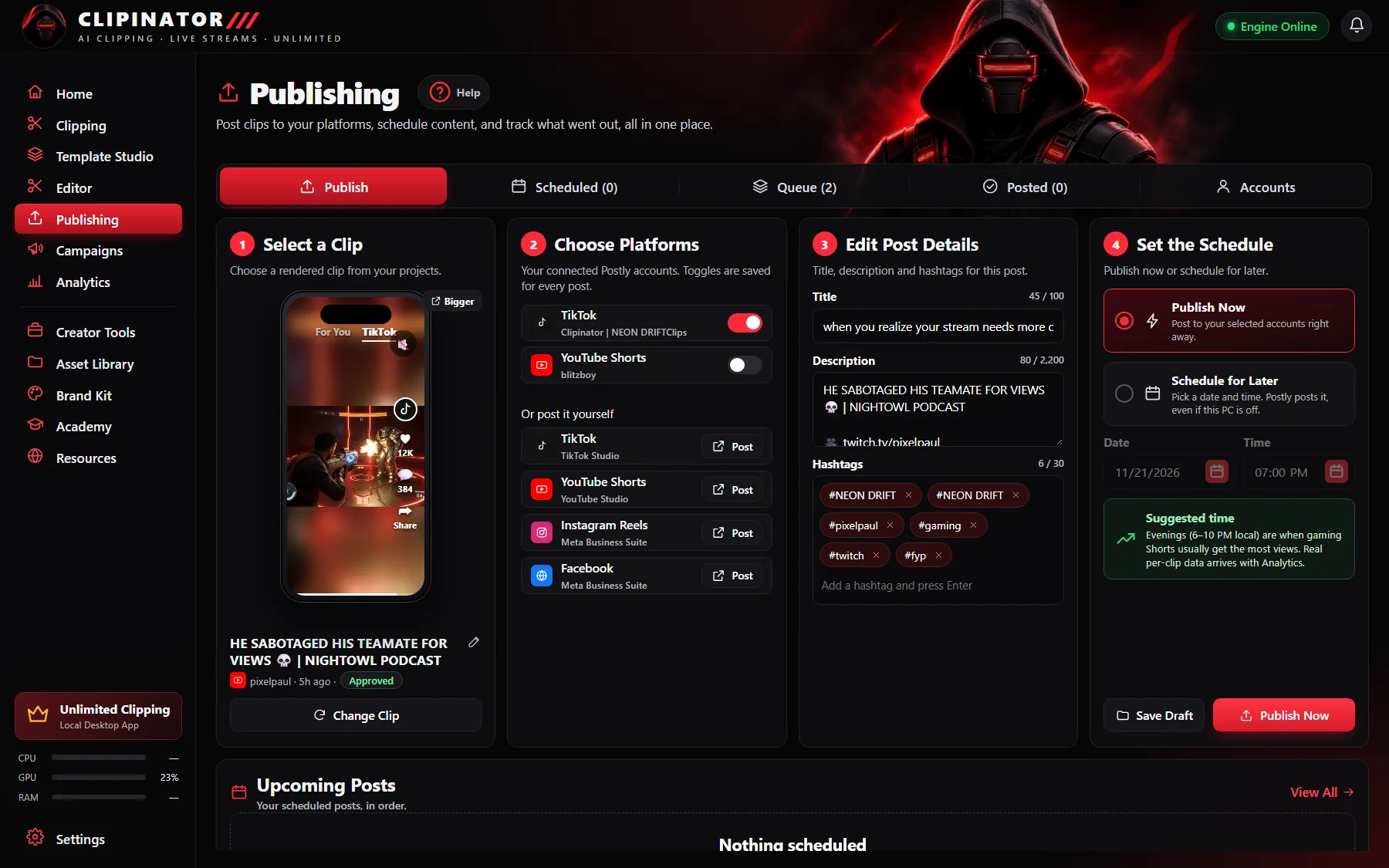
- In Publishing → Accounts, paste your Postly API key, pick a workspace and switch on your TikTok, YouTube and Instagram accounts. Postly's free plan includes 50 posts, then it's from $4 per channel a month, paid to Postly.
- In Publishing → Publish, pick a clip and see exactly how it will look on a phone.
- Choose the accounts, edit the title, description and hashtags, then Publish Now or Schedule for Later.
Option B: post it yourself (free)
Choose I'll post it myself. Clipinator saves the clip with its caption and opens TikTok Studio for you, and if you schedule it you get a reminder at the time.
Schedule a week of clips at once
Select clips anywhere and press Schedule. Pick a start time and a gap between posts; Spread them out fills the evening slots, and the clash check warns you if two posts are too close. Your posting calendar shows the whole week.
Questions
How do I upload a Twitch clip to TikTok without black bars?
Reframe it to 9:16 first, for example with the face cam on top and gameplay below. Clipinator does this automatically with its Streamer Split, Full Gameplay or Blurred Fill formats.
Can I schedule TikToks from my PC?
Yes. Clipinator schedules to TikTok, YouTube Shorts and Instagram Reels through your own Postly account, or reminds you to post it yourself at the time you pick.
What size should Twitch clips be for TikTok?
Vertical 9:16, typically 1080×1920.
Do I need Postly?
No. Post it yourself is free: Clipinator saves the clip with its caption and opens TikTok Studio, YouTube Studio or Meta Business Suite for you.
Clip it all on your own PC
Clipinator watches streams and long videos, finds the best moments and turns them into captioned Shorts. Unlimited clips, no credits, from $29 a month.