How to Turn Twitch Clips into YouTube Shorts Automatically
Twitch clips are 16:9, unedited and usually made by viewers at random. Here is how to get your PC to catch the big moments on its own and turn them into vertical, captioned Shorts.
The manual way (and why it doesn't scale)
You can download a Twitch clip, open it in an editor, crop the face cam, stack it over the gameplay, add captions and export. That's 10–15 minutes per clip, and you still had to find the clip first. For one streamer, once a week, fine. For a clipping campaign, no.
The automatic way
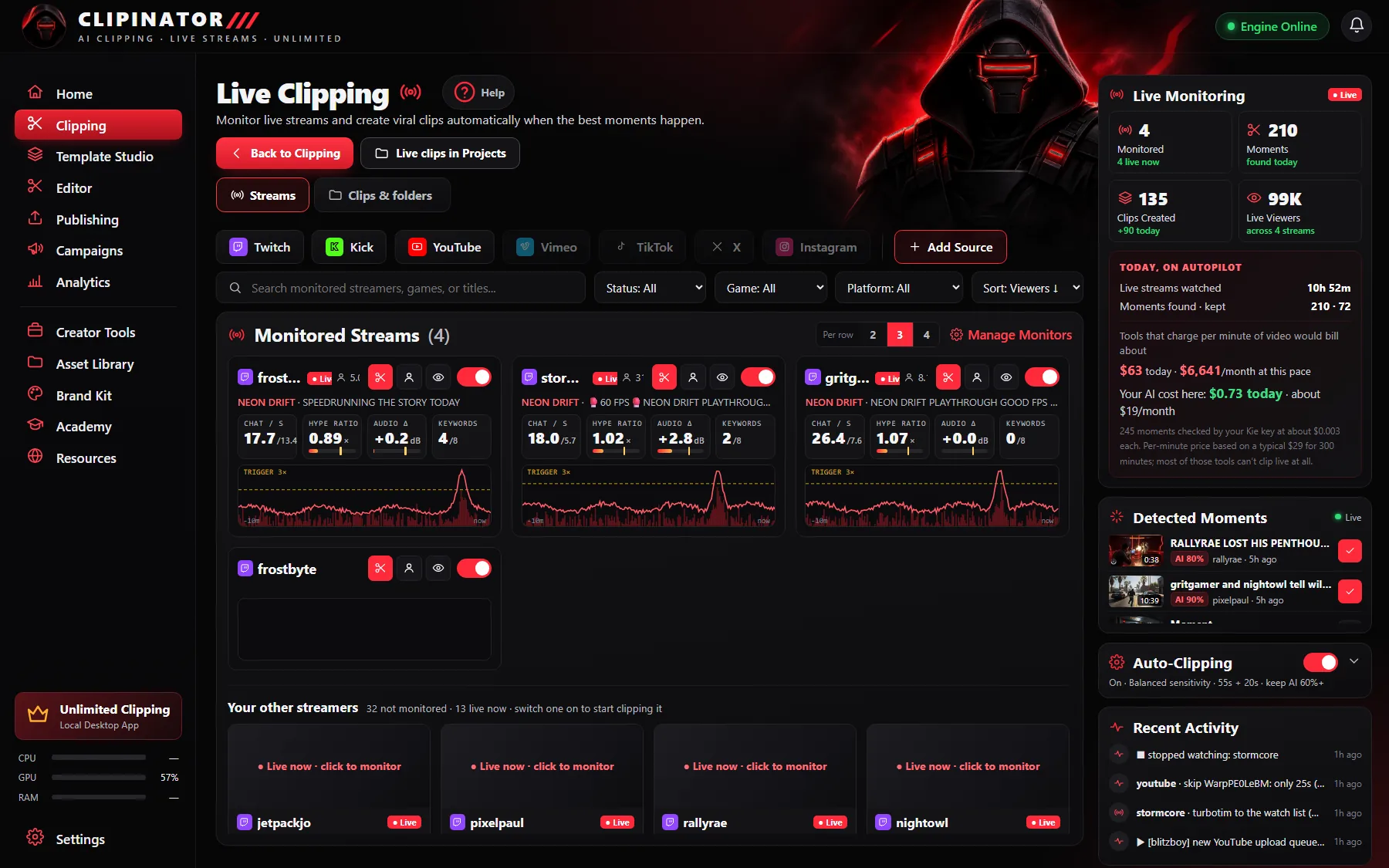
Clipinator watches Twitch streams live. It reads chat speed, the hype ratio and the audio, and when a moment spikes it clips it, with the build-up before and the payoff after. Then it frames it in 9:16, adds word-by-word captions and a title, and sends it to Needs review.
1. Add the streamer
- Open Clipping and click Live clipping.
- Press Add Source and paste the Twitch link, or just the streamer's name. Kick and YouTube work the same way.
- Tick the permission box. Only clip people you are allowed to: your own channel, a campaign you joined, or someone who said yes.
2. Set them up once
The Set up window opens every time you switch a streamer on:
- Streamer's face: the AI finds it and draws a box. If it's wrong, drag a new box around the face or avatar. Pick No cam if they don't show their face.
- Format: Streamer Split (face on top, gameplay below) for gaming, Full Gameplay for Just Chatting and IRL, Blurred Fill, Podcast, or Auto.
- Caption style: each tile shows the real colours. It's used for this streamer only.
Press Save & start clipping.
3. Tune how often it clips
In Settings → Live Clipping Defaults, Sensitivity sets how often Clipinator clips: higher catches more moments, lower only the biggest. Lead-in keeps the build-up before the spike and Follow-through keeps the payoff after it. For chaotic GTA streams, 40–55 seconds of lead-in and 15–20 seconds of follow-through works well.
4. Clip it now when you see it
Watching along and something happens? Press the red scissors on the streamer's tile to clip that moment right away. The eye button shows the stream inside Clipinator, about 15 seconds behind live, exactly what the engine sees.
5. Review and post to YouTube Shorts
Every clip lands in Needs review, sorted into a folder per streamer and per stream. Approve the good ones, then publish or schedule them to YouTube Shorts, TikTok and Instagram Reels through your own Postly account, or use Post it yourself: Clipinator saves the clip with its caption and opens YouTube Studio for you.
Missed the stream? Clip the VOD
Paste the Twitch VOD link into Long video → Shorts and Clipinator goes through the whole broadcast. See how to turn a long video into short clips, or turn the VOD into a full YouTube episode with VOD → Long-form.
Questions
Can Twitch clips be uploaded as YouTube Shorts?
Yes, once they are vertical (9:16) and under the Shorts length limit. Clipinator outputs vertical clips with captions, ready for YouTube Shorts, TikTok and Reels.
Is there a way to auto clip Twitch streams?
Yes. Clipinator monitors Twitch streams live and clips the moments where chat and audio spike, then captions them and sends them to review. It runs on your PC, so there is no per-clip fee.
How many Twitch streamers can I monitor?
Starter covers live auto-clipping for 2 streamers. Pro Clipper covers every streamer your PC can handle.
Does my PC need to stay on?
Yes, to watch and clip live streams. Posts you schedule through Postly go out even when your PC is off.
Clip it all on your own PC
Clipinator watches streams and long videos, finds the best moments and turns them into captioned Shorts. Unlimited clips, no credits, from $29 a month.