How to Turn a Long Video into Short Clips on Your PC (No Credits)
A one-hour video has maybe ten moments worth posting. Finding them by hand takes an evening. Here is how to let your PC find them, cut them to 9:16 and caption them while you do something else.
Why long videos make the best Shorts
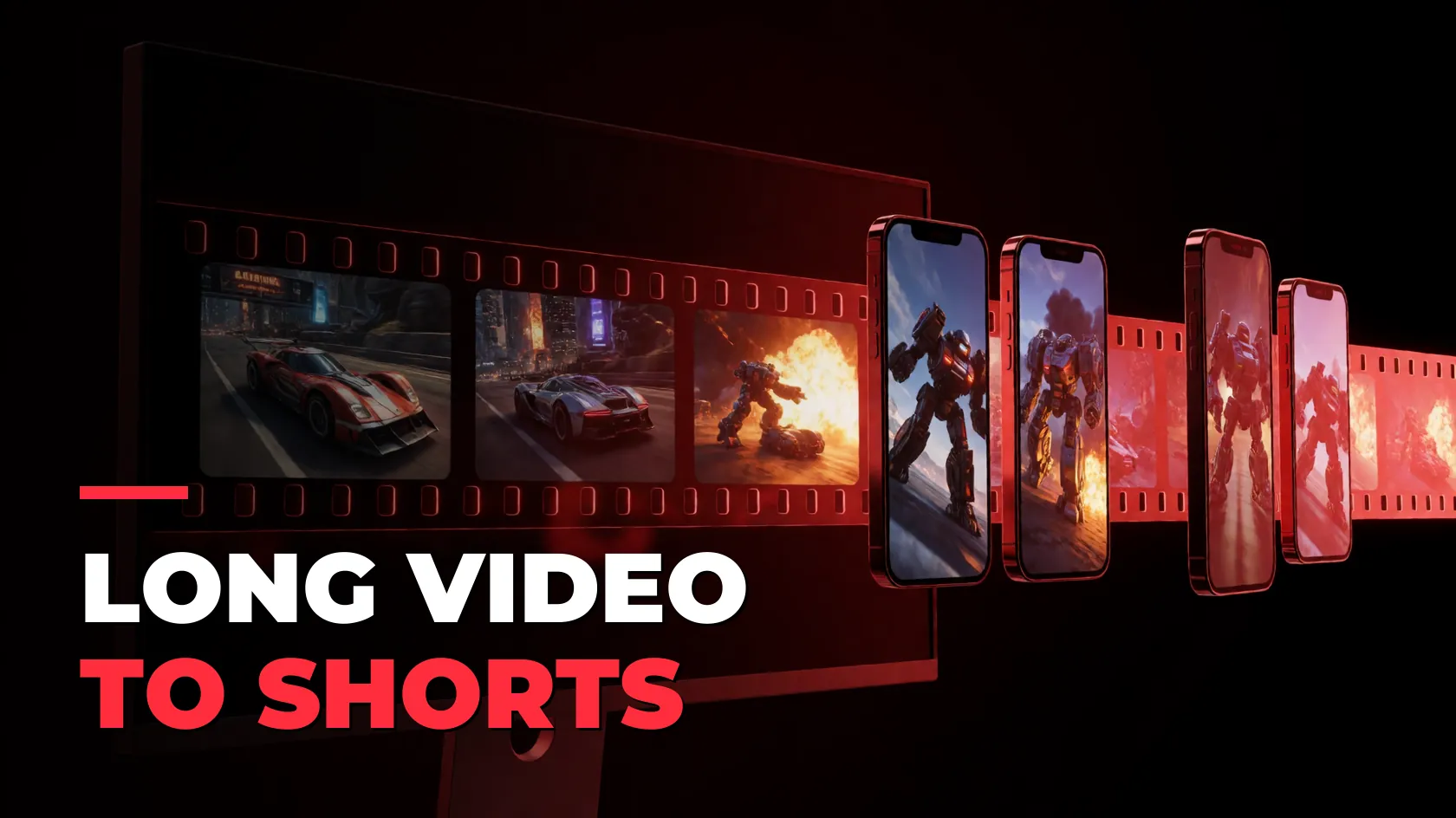
Podcasts, streams and long YouTube videos are full of moments that already work on their own: a hot take, a fail, a punchline. Cut to 30–60 seconds, framed vertically and captioned, those moments travel much further on TikTok, YouTube Shorts and Reels than the full video ever will.
The slow part has always been the hunting. You scrub through the video, mark the good bits, crop each one, add captions and export. A long video to shorts converter does that hunting for you.
What you need
- A Windows 10 or 11 PC with 16 GB of RAM. No graphics card is required; an NVIDIA card just renders faster.
- The video: a YouTube link, a Twitch VOD link, a Google Drive link, or a file on your PC (MP4, MOV, MKV and more).
- Clipinator. It runs on your own computer, so there is no per-minute meter and no credits to run out.
Step by step: long video to short clips
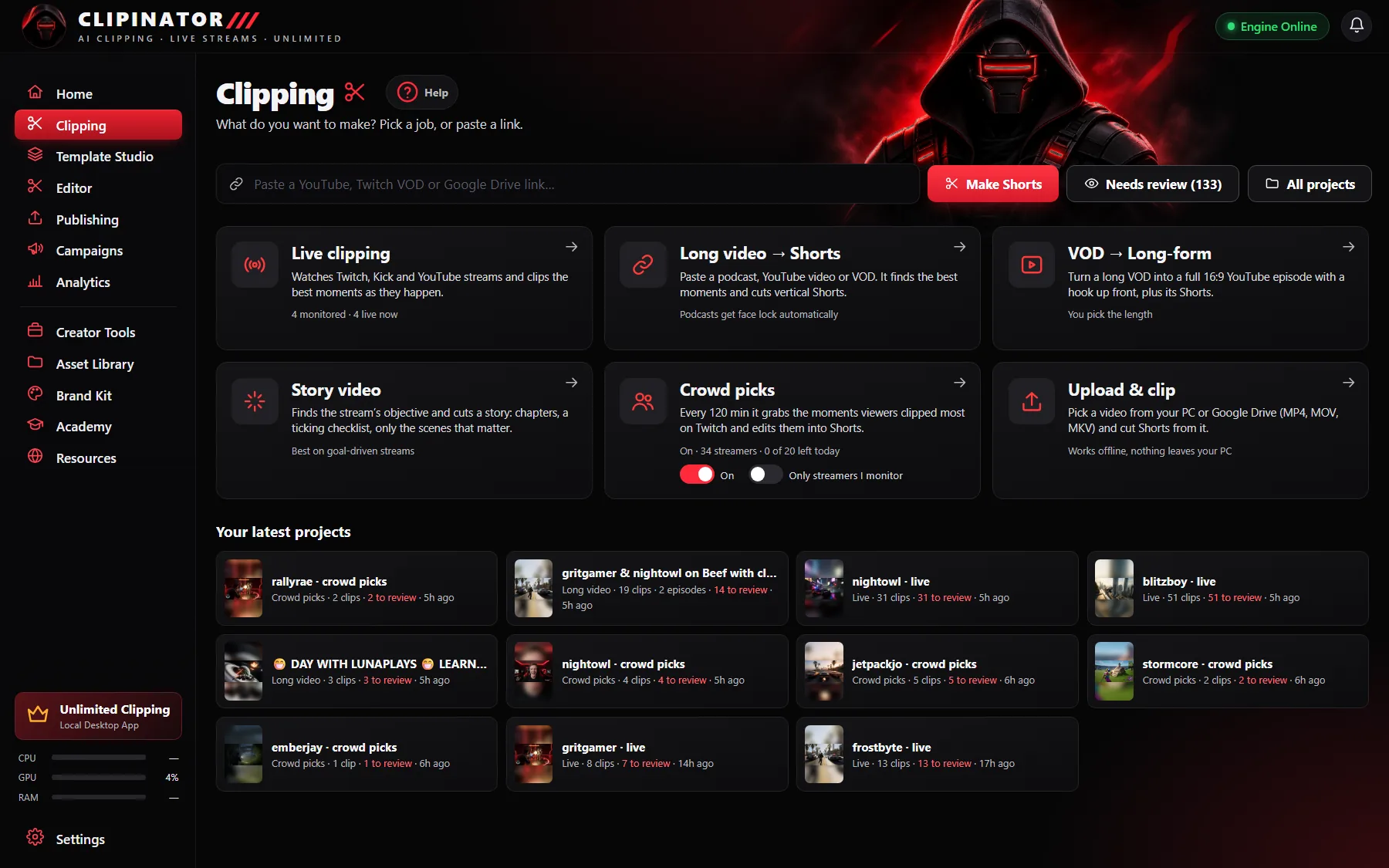
- Open Clipping and click Long video → Shorts.
- Paste the YouTube video, Twitch VOD or Google Drive link and tick the permission box. Only clip videos you are allowed to use: your own, a campaign you joined, or a creator who said yes.
- Press Make Shorts. In Clip setup, check the face box, pick a format and a caption style, and choose how long each clip should be and how many you want.
- Watch the progress on the page or in the Jobs panel. Each video becomes its own project, and clips land in Needs review as they finish.
- Approve the good ones, reject the rest, and post or schedule them from Publishing.
Clipping a file instead of a link
Got the video on your PC? Click Upload & clip and pick it. It's the same Clip setup as a link, and nothing leaves your computer. Google Drive for desktop shows up as its own drive, so Drive files work too. For a Drive share link, paste it into Long video → Shorts instead; it must be shared as “Anyone with the link”.
Picking the right format
| Format | Best for |
|---|---|
| Streamer Split | Gaming: the face on top, gameplay below |
| Full Gameplay | Just Chatting, IRL and videos without a face cam |
| Blurred Fill | Any 16:9 video you want to keep whole |
| Podcast | Interviews and talk shows, with face lock |
What it costs
The clipping, editing and rendering run on your PC, so there is no cost per clip. The AI that picks moments has a free built-in option that runs locally. If you want sharper titles, you can connect your own OpenAI key: about 1¢ per finished clip, paid straight to OpenAI, with a daily cap you set. Clipinator itself is a flat monthly plan with unlimited clips.
Make the clips worth watching
- Start on the reaction or the question. The first two seconds decide whether people stay.
- Keep captions big and word by word. Most people watch muted. See auto captions for Shorts.
- Keep titles short and specific. “He missed the jump by one pixel” beats “Funny moment”.
Questions
Is there a per-clip cost?
No. Clipinator runs on your PC with a built-in AI that costs nothing per clip. The app itself is a flat monthly plan from $29 with unlimited clips. Only clip videos you have permission to use.
How long does it take?
It depends on the video length and your PC. Clips start landing in Needs review while the rest of the video is still being processed, so you can review as you go.
What links can I paste?
YouTube videos, Twitch VODs and Google Drive share links. You can also pick a file from your PC: MP4, MOV, MKV and more.
Do the clips have a watermark?
No. Clipinator only adds a watermark if you type your own @handle into it, and you can add your own logo through a Brand Kit.
Clip it all on your own PC
Clipinator watches streams and long videos, finds the best moments and turns them into captioned Shorts. Unlimited clips, no credits, from $29 a month.